> ## Documentation Index
> Fetch the complete documentation index at: https://dify-6c0370d8-release-1-16-1.mintlify.site/llms.txt
> Use this file to discover all available pages before exploring further.
# Workflow Web Apps
> Turn your workflows into powerful web applications with batch processing, result management, and streamlined user experiences
Workflow web apps transform your Dify workflows into production-ready applications that handle everything from single runs to large-scale batch operations. Users get a clean interface for input, real-time processing feedback, and comprehensive result management.
## How Workflow Apps Work
When you publish a workflow, Dify automatically creates a web interface that:
* **Collects input parameters** through forms based on your workflow's start variables
* **Processes requests** using your complete workflow logic
* **Handles results** with built-in saving, copying, and management features
* **Scales automatically** from single runs to batch processing hundreds of items
Unlike chat apps that maintain conversation context, Workflow apps are designed for discrete tasks that produce specific outputs.
Run workflows one at a time with immediate results and feedback
Process hundreds of inputs simultaneously with CSV upload/download
Save, organize, and export outputs with built-in storage
Generate variations of successful outputs automatically
## Single Execution
The default mode for Workflow apps handles individual requests with real-time processing:
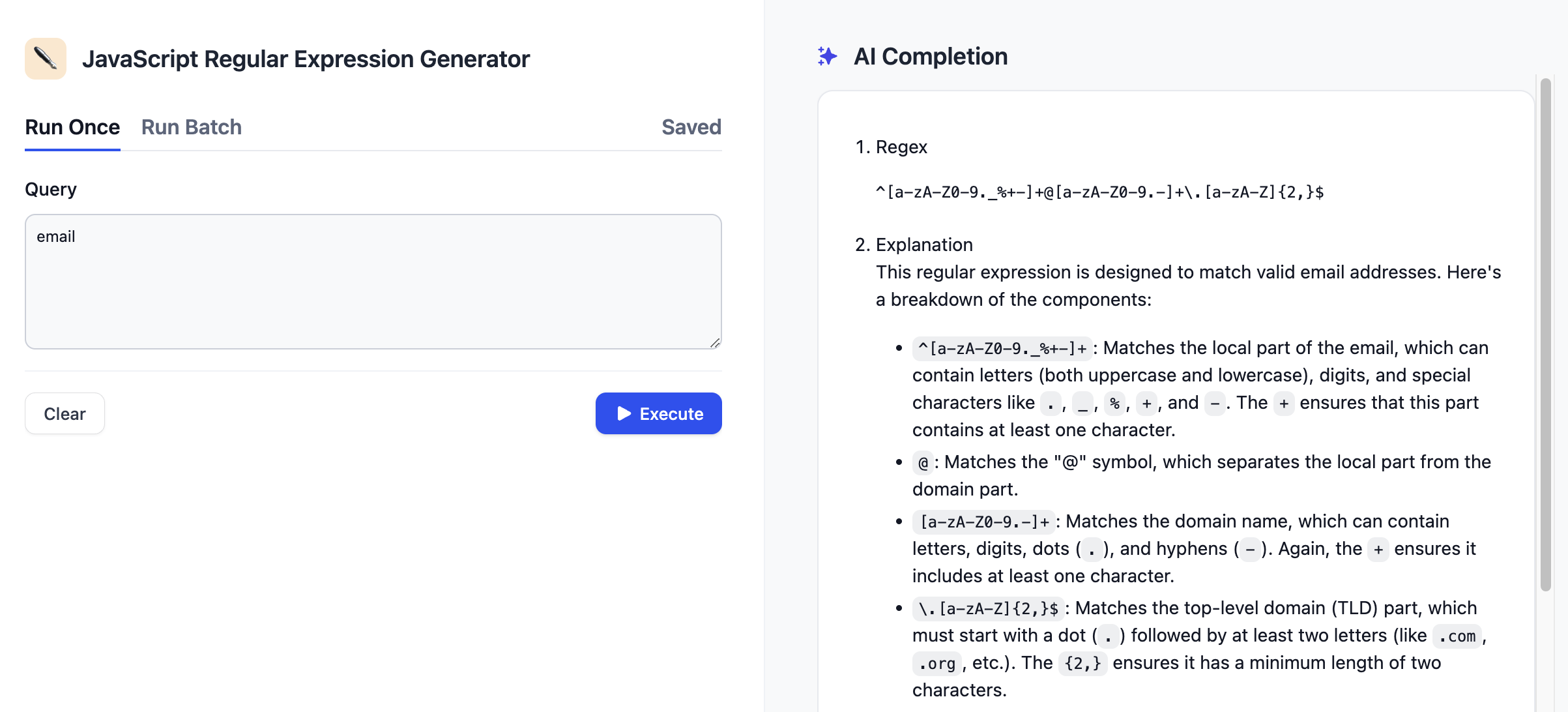
**User Experience**:
1. **Fill input form**: Users provide parameters based on your workflow's start variables
2. **Click run**: The workflow executes with real-time progress indication
3. **View results**: Output appears with immediate access to copy, save, and feedback options
4. **Take actions**: Users can save important results, provide feedback, or generate similar outputs
Each result includes built-in actions:
* **Copy**: One-click copying to clipboard for easy sharing
* **Save**: Store results in the app's saved items for later access
* **Feedback**: Like/dislike ratings to help improve your workflow
* **More like this**: Generate variations based on the current result (if enabled)
## Batch Processing
When you need to run the same workflow on multiple inputs, batch processing handles hundreds of executions simultaneously:
Perfect for tasks like generating content for multiple topics, processing customer data, or analyzing large datasets.
### Set Up Batch Runs
Click the **Run Batch** tab to access batch processing features.
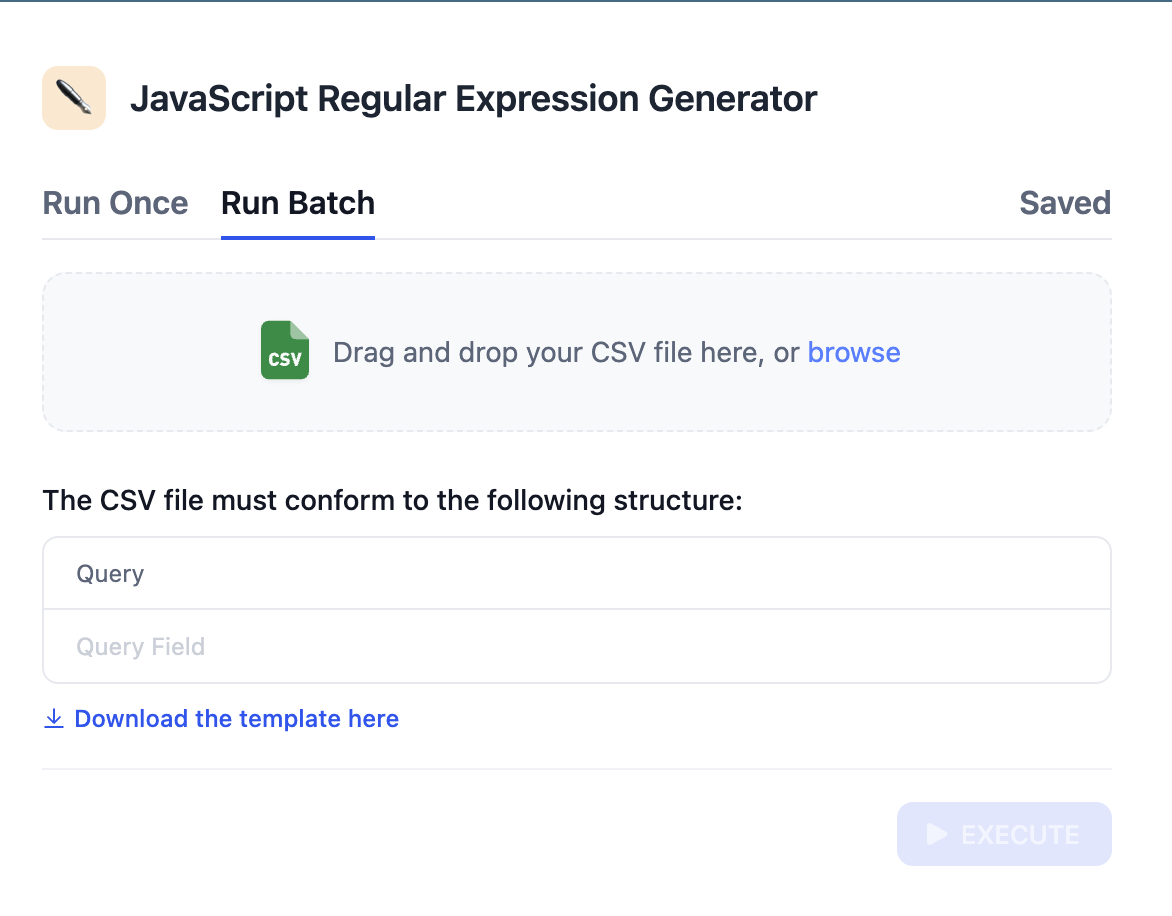
Download the template file to see the required column structure for your workflow's input variables.
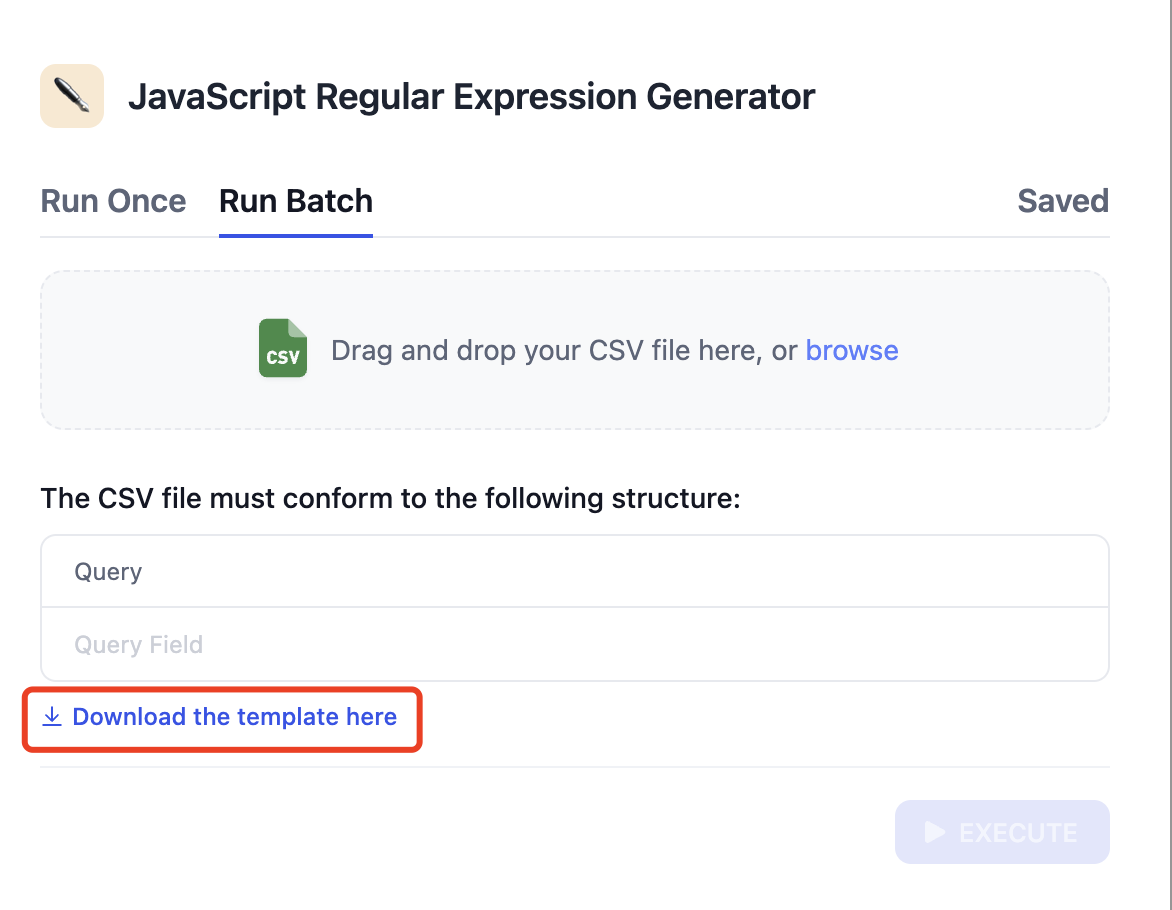
Fill the template with your input data. Each row becomes one workflow execution.
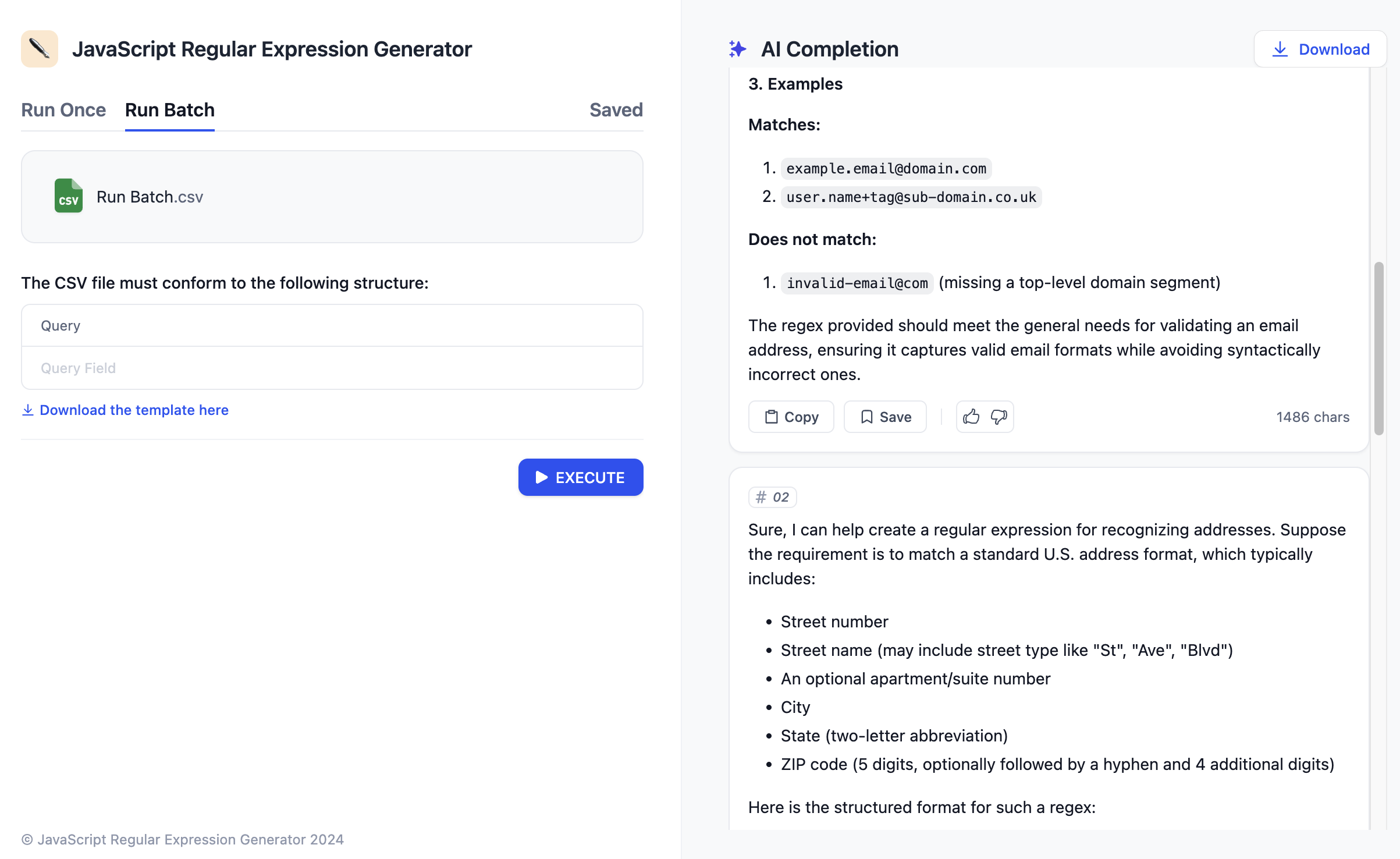
Upload your completed CSV file and start batch processing.
### Batch Processing Benefits
* **Parallel execution**: Multiple workflow runs happen simultaneously
* **Progress tracking**: Real-time updates on completion status
* **Bulk export**: Download all results as a CSV file when finished
* **Error handling**: Failed items are clearly marked with error details
CSV files must use Unicode encoding to prevent import failures. When saving from Excel or similar tools, explicitly select "Unicode (UTF-8)" encoding.
## Result Management
Workflow apps include comprehensive result management to help users organize and reuse outputs:
### Save Results
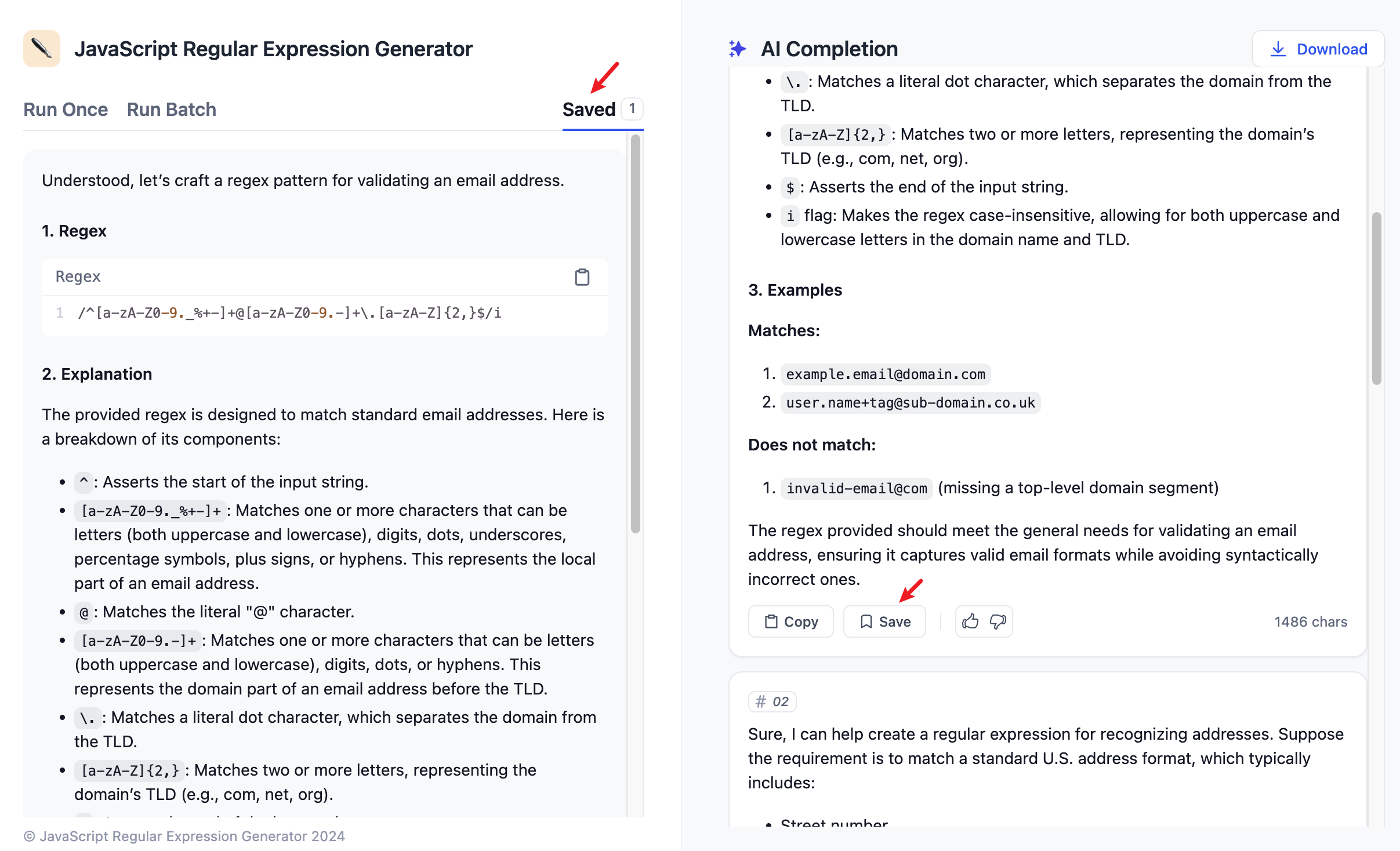
**How saving works**:
* Users click **Save** on any result they want to keep
* Saved items appear in the dedicated **Saved** tab
* Each saved result includes the original inputs and full outputs
* Users can organize saved results and access them anytime
Saved results persist across user sessions, making Workflow apps useful for building personal libraries of outputs.
### Generate Variations
When you enable **More like this** in your workflow settings, users can generate variations of successful results:
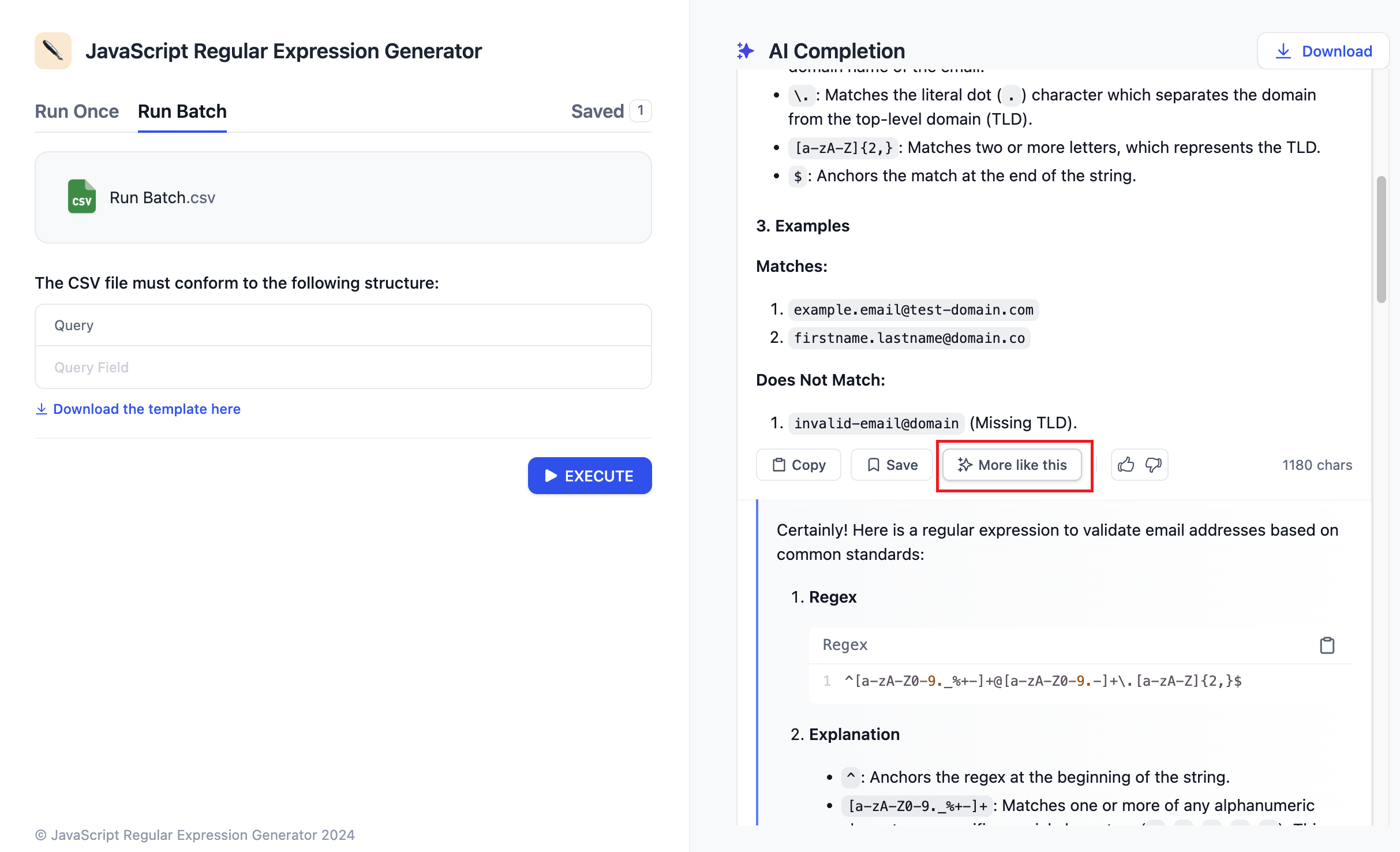
**How it works**:
1. User gets a result they like
2. They click **More like this** to generate similar outputs
3. The workflow runs again with slight variations to produce different but related results
4. Users can iterate until they find the perfect output
**More like this** works especially well for creative workflows like content generation, where users want to explore different approaches to the same topic.